> ## Documentation Index
> Fetch the complete documentation index at: https://docs.livepeer.org/llms.txt
> Use this file to discover all available pages before exploring further.
# Migrate stake to Arbitrum
This guide is applicable to delegators who delegated their LPT to an
orchestrator on the Ethereum mainnet prior to February 14th, 2022. Once you have
successfully completed the migration, this guide is no longer applicable and you
will use Arbitrum in lieu of Ethereum Mainnet for all protocol actions.
Claiming your delegated stake and earned ETH on Arbitrum is highly encouraged
to ensure that (1) you continue earning inflationary rewards and fees and (2)
you will be able to withdraw any currently delegated stake and earned ETH
fees. As of February 14th, 2022, withdrawals on the Ethereum Mainnet will be
disabled and all inflationary rewards and ETH fees will be disbursed on
Arbitrum.
## Prerequisites for all chains
* Before using this guide, you will need make sure your Arbitrum wallet has
enough arbETH to cover gas for the `claim` transaction. If you do not have
arbETH in your wallet, you will need to add some using one of the bridges or
on-ramps listed [here](https://portal.arbitrum.one/).
* The migration must be completed using the Livepeer explorer
* **If you use a contract account rather than an EOA**: You will need to
interact directly with the Migrator contract methods. Please use the guide
[here](/orchestrators/guides/migrate-from-contract-wallet). *If you don’t know
what this means, it probably doesn’t apply to you.*
## Claiming via the Explorer
1. Navigate to the [Livepeer Explorer](http://explorer.livepeer.org). If you
have not connected the wallet that you used to delegate your LPT, connect it
using the prompt in the upper left hand corner. If you haven't switched your
network to Arbitrum, you'll be prompted to do so.
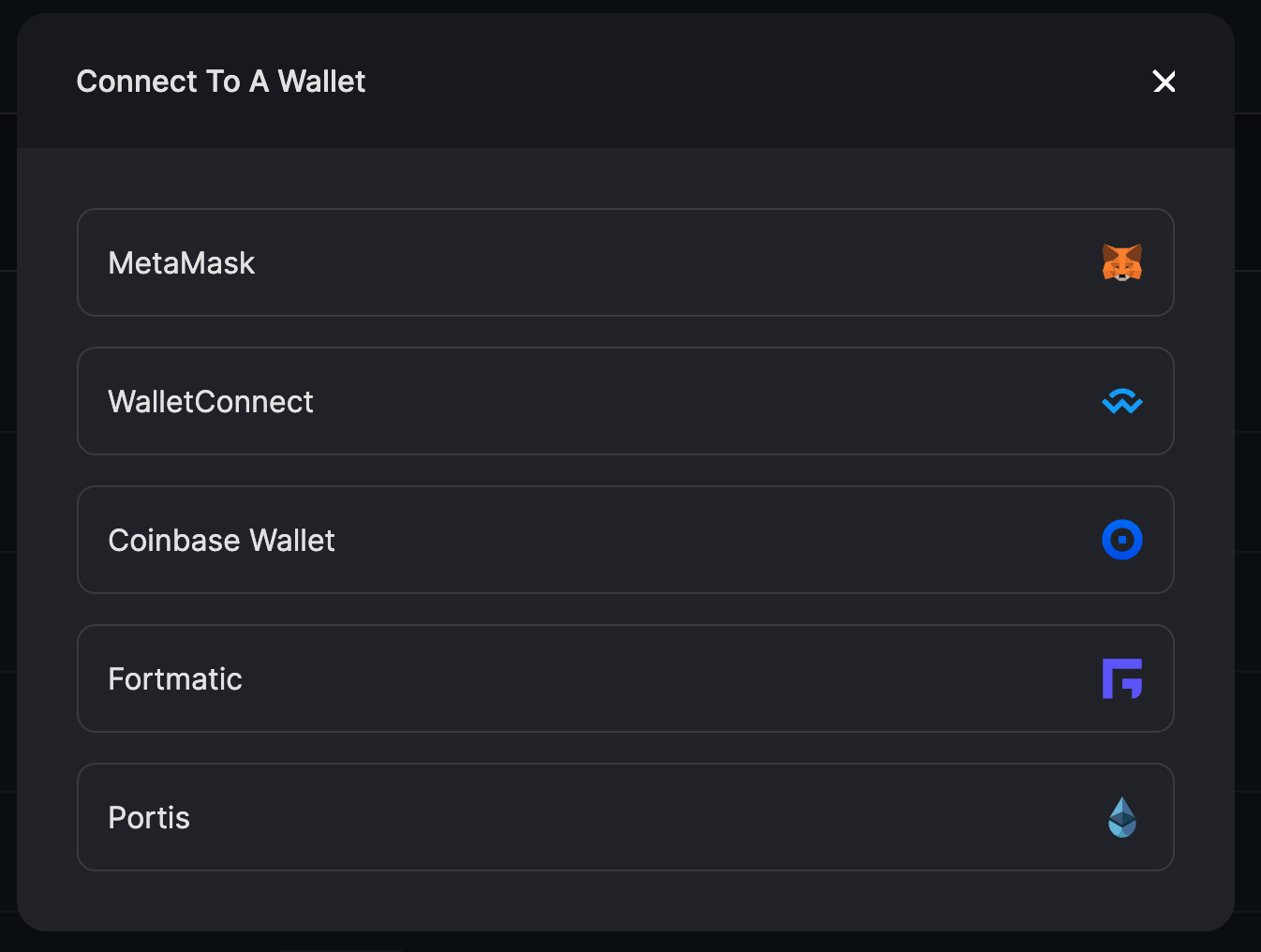
 There are a few options for connecting a wallet to Arbitrum. The wallet you choose should be the same one with which you originally delegated your LPT on the Ethereum mainnet. It should also contain a small amount of arbETH to pay for the `claim` on Arbitrum.
 2. **Claim your stake, rewards, and fees**
Click `Claim` to initiate a transaction that will claim your stake, rewards
and fees.
2. **Claim your stake, rewards, and fees**
Click `Claim` to initiate a transaction that will claim your stake, rewards
and fees.
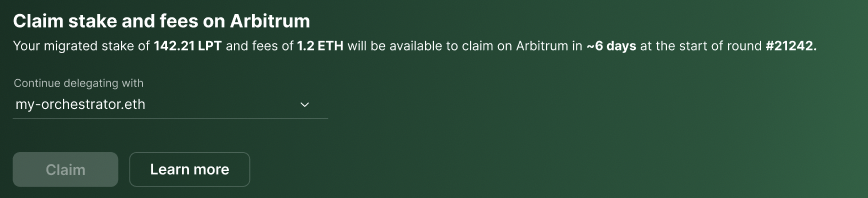
If your orchestrator has not migrated and has not conveyed plans to migrate,
you will see a prompt to choose a new orchestrator.
3. **View your profile**
Once the `claim` transaction has been confirmed (this usually takes a few
seconds on Arbitrum), you see a link to your profile. Here, you'll be able
to see your newly claimed balances.
You will see an [Arbiscan](https://arbiscan.io/) link to the transaction id
in case you want to look at the submitted transaction.