> ## Documentation Index
> Fetch the complete documentation index at: https://docs.livepeer.org/llms.txt
> Use this file to discover all available pages before exploring further.
# Listen to asset events
> Learn how to listen to asset events using Studio webhooks.
Livepeer Studio uses webhooks to communicate with your application
asynchronously when events for your asset occur. For example, you may want to
know when an asset has been `uploaded` or is `ready`, so that you can surface
this information to viewers.
When these events happen, you can configure Studio to make a `POST` request to a
webhook URL that you specify.
### Type of asset events
| | |
| --------------- | ------------------------------------------------------------------------------------------------------------------------ |
| `asset.created` | This fires when an On Demand asset is created. |
| `asset.updated` | This fires when an On Demand asset is updated. The asset payload will contain a playback URL when playback is available. |
| `asset.ready` | This fires when an On Demand asset is ready. Playback will be available with all transcoded renditions. |
| `asset.failed` | This fires when an On Demand asset fails during the upload or during processing. |
| `asset.deleted` | This fires when an On Demand asset is deleted. |
### Set up a webhook endpoint
The first step is to set up a webhook endpoint in your application. This is the
URL that Livepeer Studio will send the event to - learn more about
[setting up a webhook endpoint](/developers/guides/setup-and-listen-to-webhooks).
### Add a webhook URL to Livepeer Studio
Log in to the [Livepeer Studio](https://livepeer.studio/) and navigate to the
[Developers/Webhooks](https://livepeer.studio/dashboard/developers/webhooks)
page.
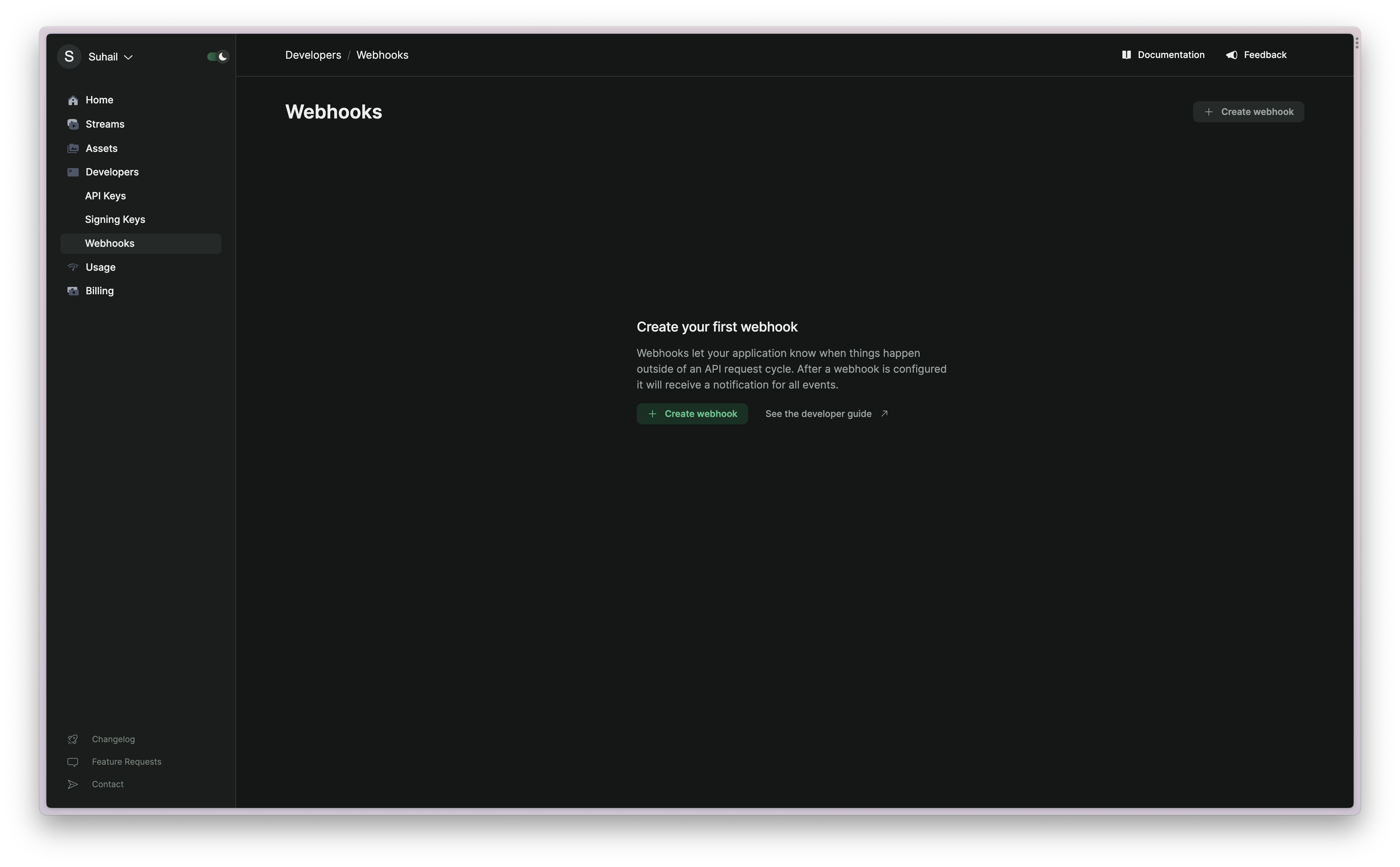 Click the "Create Webhook" button and enter the URL of the webhook endpoint.
Select any asset event (with an `asset` prefix) and click "Create Webhook".
Click the "Create Webhook" button and enter the URL of the webhook endpoint.
Select any asset event (with an `asset` prefix) and click "Create Webhook".