> ## Documentation Index
> Fetch the complete documentation index at: https://docs.livepeer.org/llms.txt
> Use this file to discover all available pages before exploring further.
# Vote on proposals
Follow the steps below to set and configure voting in governance polls with
`livepeer_cli`. You can do this without exporting keys from the machine on which
the orchestrator node is running.
## Voting With the `livepeer_cli`
Follow the steps herein to access and vote with the `livepeer_cli`:
1. Find the contract address for the poll in the
[Livepeer Explorer](https://explorer.livepeer.org/voting) page for the poll.
 The poll page displays the following message:
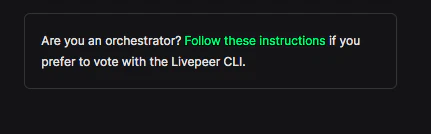 Click the link, "Follow these instructions", to display the instructions for
voting with `livepeer_cli`:
Click the link, "Follow these instructions", to display the instructions for
voting with `livepeer_cli`:
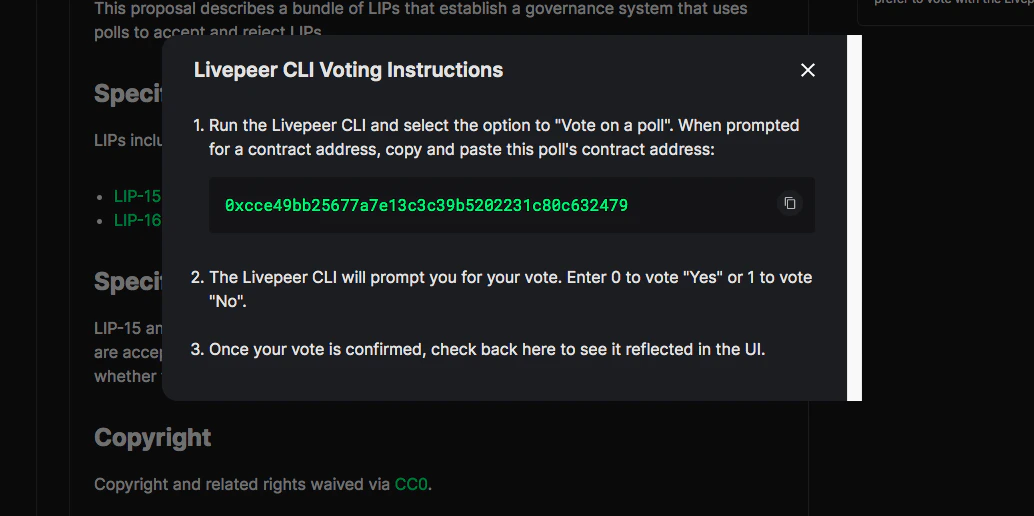
It is important to note the poll contract address for upcoming steps.
2. Run `livepeer_cli`
3. Enter the number corresponding to the option to `Vote on a poll`
4. Enter the contract address saved in step 1.:
```bash theme={"theme":{"light":"github-light","dark":"dark-plus"}}
Enter the contract address for the poll you want to vote on - >
```
You will be prompted with the following voting options:
```bash theme={"theme":{"light":"github-light","dark":"dark-plus"}}
Identifier Voting Options
0 Yes
1 No
```
5. Choose and confirm your vote
**For example:**
```bash theme={"theme":{"light":"github-light","dark":"dark-plus"}}
Enter the ID of the option you want to vote for - > 0
Are you sure you want to vote "Yes" ? (y/n) - > y
success
```
6. Wait for the transaction to be confirmed. You should be able to view your
node submitting the vote transaction.
**For example:**
```bash theme={"theme":{"light":"github-light","dark":"dark-plus"}}
I0422 03:30:44.191809 43457 backend.go:96]
******************************Eth Transaction******************************
Invoking transaction: "vote". Inputs: "_choiceID: 0" Hash: "0xf6957c190f1f16fc2ca4a93846903eb435c5e08fa7f6f40b6e159aab6d74905f".
**************************************************************************
```
7. Once the vote transaction is confirmed, you will be able to see your vote
reflected in the explorer poll page of the UI.